The Web App — A Complete Tour
This chapter is a reference walkthrough of the Nova web app: every screen, panel, and control, and how to drive them with mouse and keyboard. If you have read the earlier chapters you already know what the game does; this chapter is where everything lives.
Signing in
The hosted Nova requires an account, so you start at a sign-in screen — the NOVA / Galactic Command wordmark over the prompt "Authenticate to deploy." Click Continue with Apple or the Google button; each opens that provider's pop-up, and approving it signs you in. One account covers both methods (they are linked by email), there is no password to set, and a session lasts until it quietly expires, at which point Nova returns you to the sign-in screen automatically. To sign out deliberately, use the Account view in the left menu (below).
Development builds instead show a dev sign-in: an "Or, in dev" email field and an Enter dev mode button that turns any email into that commander's account. It never appears on the live service, and a Nova with authentication switched off skips this screen entirely.
The enrollment screen
When you open Nova in a browser you arrive here. A left-hand menu offers these views:
- My games — the games you are already in.
- Join a game — the games forming that you have not joined, with a count badge.
- New game — the game-creation form.
- Map editor — the custom-galaxy designer (covered in its own chapter).
- Account — who you are signed in as, with a Sign out button (only shown when Nova requires an account).
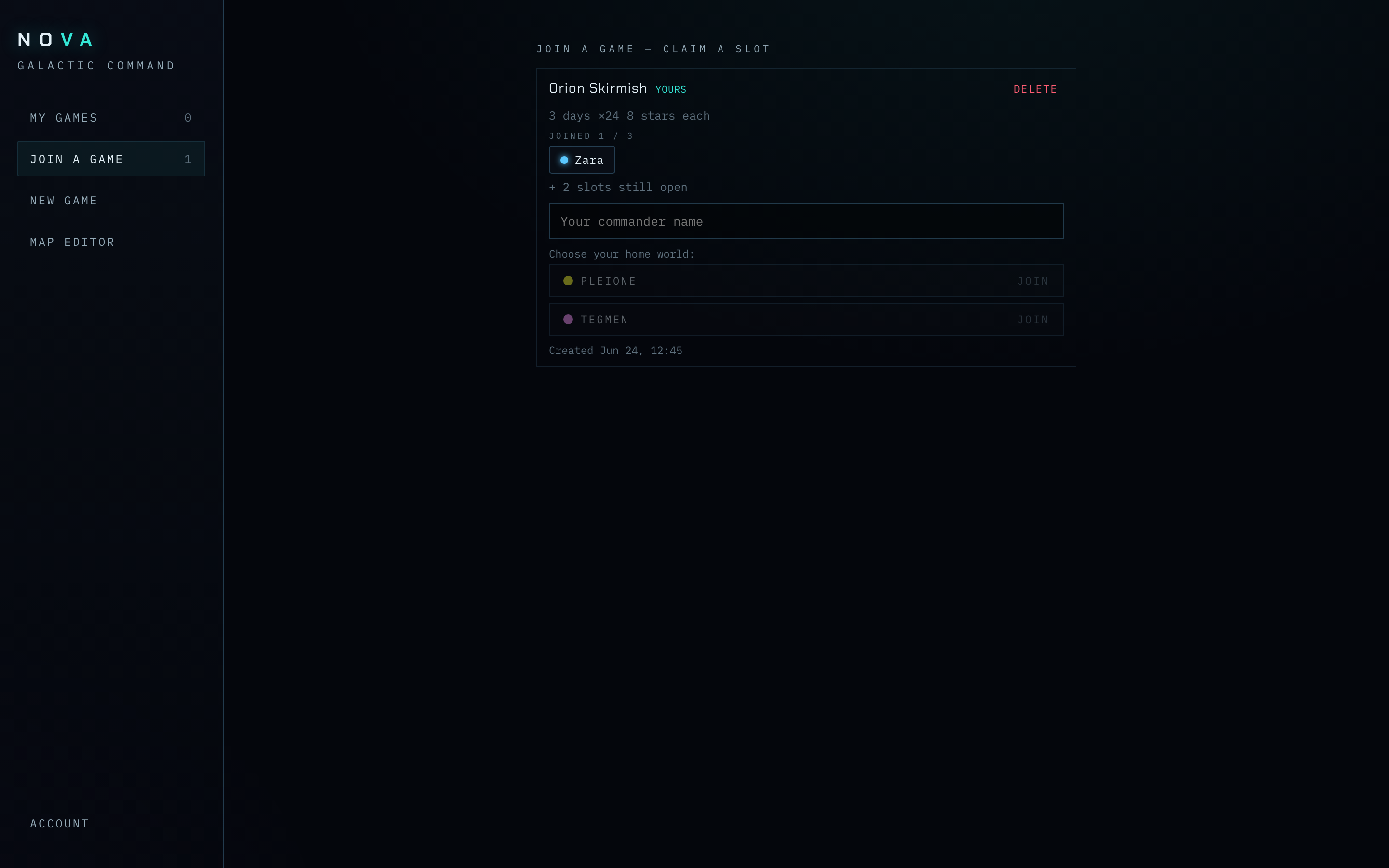
Screenshot: the NOVA / Galactic Command enrollment screen, left menu highlighted.
My games
The games you belong to. An active game is a card with its name (or Theatre #N) and a row of coloured commander pills; click your pill to enter the game — you are locked to the commander you claimed, so it is the only one you can pick. A waiting (forming) game you have joined shows a live monitor card instead: it reads "Waiting for players…" and updates as others join, then "All players joined — starting…" once the last slot is taken, at which point Nova drops you in. There is no manual Start button — a full game starts automatically. If you are not in any games yet, the empty state reads "You're not in any games yet."
Join a game
The games still forming that you have not joined. Each is a card with:
- the game's name (or Theatre #N), with a YOURS tag if you created it;
- a settings chip row — game length (e.g. 1 hour, 3 days, 45 min), time compression (e.g. ×24), and galaxy size (e.g. 8 stars each);
- a roster — "Joined K / N", a pill for each commander who has claimed a slot (your own tagged you), and "+ M slots still open";
- a "Your commander name" text field and a Join button.
Type a name and press Join to claim the next open slot and name yourself; the game then moves to My games, where you watch it fill until it auto-starts. You may join one slot per game — once you've claimed a commander there, a second Join in the same game is refused. While the list loads you see "scanning…"; if nothing is forming, the empty state reads "No games forming." (With authentication disabled, nothing locks.)
In development builds, each card also has a small delete link (with a confirmation prompt) for cleaning up old games.
New game
The creation form, headed Open a new game, top to bottom:
- Theatre name (optional).
- Map — choose where the galaxy comes from. If you have saved custom maps, a two-way toggle
appears: Generate a map or Load a saved map. The two are mutually exclusive.
- Generate a map shows three layout buttons — Symmetric, Sym + scatter, Random
(an explanatory line updates as you select) — plus the two fields below:
- Number of commanders — how many commander slots the game has (a count of at least two). Players name themselves when they claim a slot in the lobby, so you do not name commanders here.
- Stars per commander — any value you type (default 8).
- Load a saved map shows a dropdown of your saved maps. Picking one fixes the number of commanders to that map's count (a note states it), and the layout/stars-per-commander options step aside. (With no saved maps, the toggle is hidden and the form just generates.)
- Generate a map shows three layout buttons — Symmetric, Sym + scatter, Random
(an explanatory line updates as you select) — plus the two fields below:
- Pace — sets the clock (applies whether or not you use a saved map). Three preset buttons —
Quick (1 hour), Medium (3 days), and Long (14 days) — fill in the two fields below;
Quick is selected by default. The fields stay editable for any custom setup, and the active
preset highlights only while the fields match it (otherwise the summary line reads "custom"):
- Game length (real hours) — the real-world duration of the game; decimals are allowed.
- Time compression (×) — how much faster game time runs than real time (1× is real time). A line beneath restates your choice in plain language, e.g. "Runs for 1h of real time … advances 600× faster than real time."
- Advanced (ships, costs) — an optional, collapsible section you expand to reveal two
tunables:
- Starting ships (home world) — the size of every commander's opening home-star garrison ("Every commander's home world starts with this many ships."); defaults to 250, any whole number from 0 up.
- Purchase costs — custom prices for everything commanders can buy (factories, the speed/range/battle-power upgrades, spy probes, nova bombs, and the two shields). Leave it at the standard prices, or Reset to defaults to restore them.
- Create game — builds the galaxy and posts the game to the lobby. Commanders are named when they join, and the game starts automatically once every slot is claimed — there is no manual start step.
Account
Shown only when Nova requires an account. The view is headed Account and tells you who you are signed in as — a "Signed in as" {email} line — with a Sign out button that ends your session and returns you to the sign-in screen. (If your session goes stale on its own, Nova does the same automatically.)
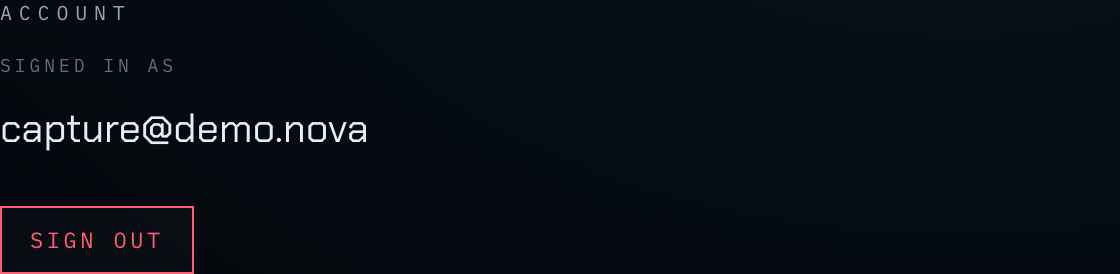
Screenshot: the Account view — the "Signed in as" email and the Sign out button.
The game screen
Once you enter a theatre the screen splits into the star map (left, most of the window) and the rail of HUD panels (right), with a status bar across the top.
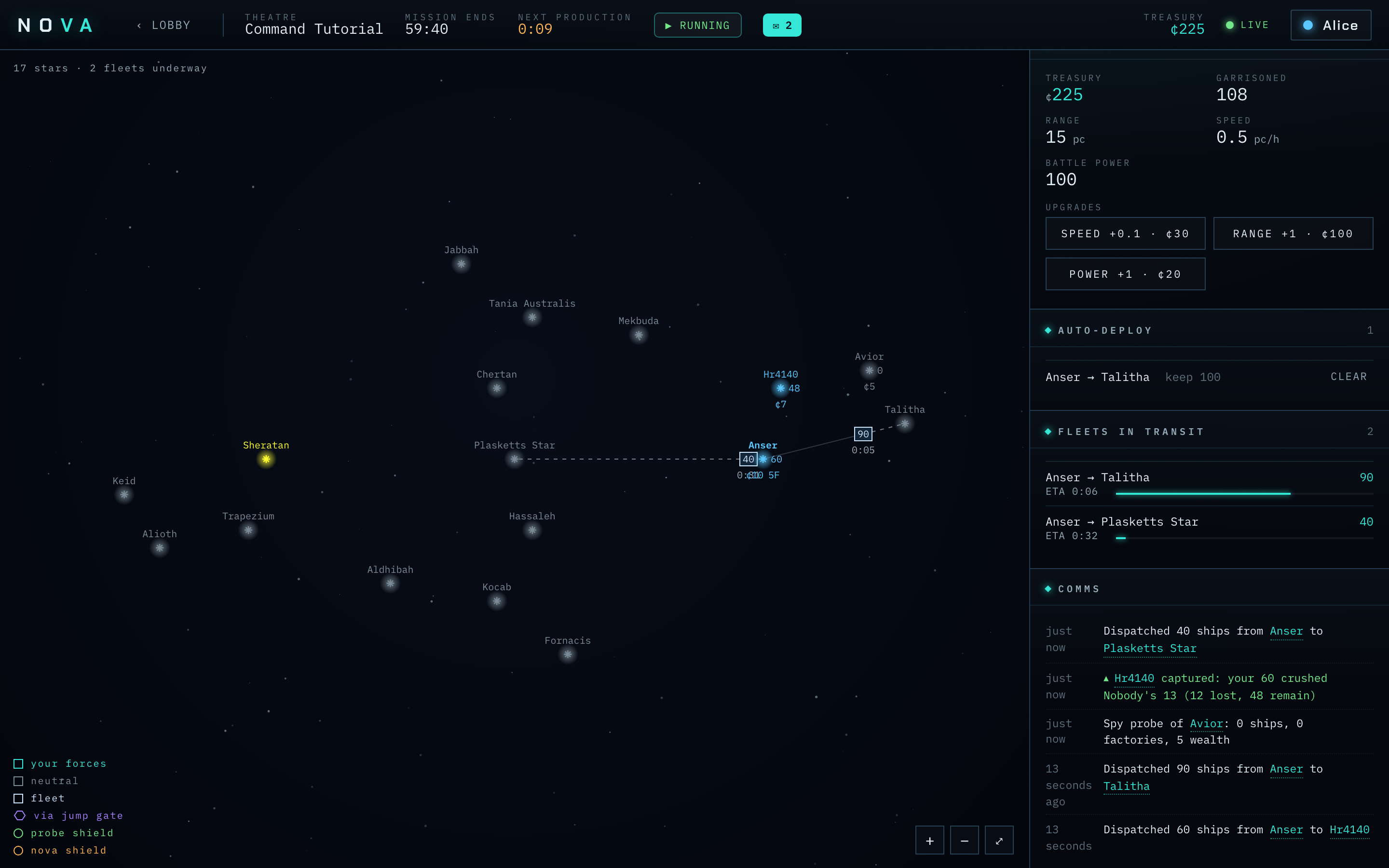
Screenshot: the full game screen — star map on the left, HUD rail on the right, status bar on top.
The status bar (top)
From left to right:
- The NOVA wordmark.
- Theatre — the theatre's name or number.
- Mission ends — countdown to the end of the game (it reads Mission: Ended once the game is over).
- Next production — countdown to the next production cycle (highlighted; hidden once the game is over).
- Treasury — your credits, e.g.
500 c. - A connection indicator — a dot reading live (connected), linking… (connecting), or reconnecting… (the link dropped and is recovering).
- A pause status chip — the theatre's clock at a glance, and the quickest way to drive a
pause:
- RUNNING while the clock is moving; click it to propose a pause.
- PAUSED · resumes in … while paused (with the countdown to auto-resume); click it to propose a resume.
- PAUSE PROPOSED while a proposal is pending; click it to jump to Diplomacy → Global to second or withdraw it.
- An unread-mail chip — appears when you have unread Diplomacy messages, showing the count; click it to open Diplomacy.
- A player chip — your colour and commander name.
- ‹ Lobby — leaves the game and returns to enrollment (your game keeps running). The NOVA wordmark does the same.
The star map (left)
All the map reading from Reading the Star Map applies. The web controls are:
- Pan: click and drag anywhere.
- Zoom: mouse wheel (zooms toward the cursor), or the + / - buttons at the bottom of the map. A fit-to-view button reframes the whole galaxy in the viewport, and zoom-out is capped at that framed map so you can't shrink it away into empty space.
- Select a star: click it (a click, not a drag). Its details fill the Contact panel.
- Deselect / cancel: click empty space, or press Esc while composing an order.
A small overlay at the top-left reports "N stars · M fleets underway," and a legend at the bottom-left decodes the colours (your forces, neutral, fleet, probe shield, nova shield). While you are composing an order, a hint banner explains what to click next.
The HUD rail (right)
By default the rail shows your global panels (below). Selecting a star or fleet drills down: the rail replaces the global view with just that star's Contact panel — or a fleet's Fleet in transit panel — each with a ← Back control to return to the global view. Any failed action shows a red error message at the top.
- Standings — the scoreboard: every commander sorted by star count, each with a colour dot, name (your row marked me), star count, and a proportional bar. The header also shows how many neutral stars remain.
- Command — your global stats (Treasury, Garrisoned ships, Range, Battle power) and the three Upgrade buttons: Speed +0.1, Range +1, Power +1.
- Auto-deploy — your standing orders, each as origin -> destination with a keep N note and a clear link. Only shown when you have orders.
- Diplomacy — the chat panel: a channel row with Global first, then a chip per other commander, each carrying a per-channel unread badge (capped at 99+). Below it the selected thread, then the composer. Pause governance now lives here — a pending proposal shows a pause-governance card at the top of Global (with your Second or Withdraw button) and every step is logged as an italic system line in Global. Incoming messages raise an in-app toast (click it to open that thread) and a push when you are away. See Diplomacy — talking to other commanders below.
- Fleets in transit — every unit you have travelling, with origin -> destination, a quantity tag (ship count, or probe / nova bomb), and a progress bar, ordered by arrival time (soonest first). Click a fleet's marker on the map to open its Fleet in transit panel (see below). Empty state: "No fleets underway."
- Comms — the news feed. Each entry is stamped with a relative time — "just now", "5 minutes ago", "2 days ago" — in your local time, updating live, and pause-adjusted (it freezes while the game is paused). Victory events are flagged with an up marker, defeats with a down marker, and star names are clickable links that jump the map to that star. Each production cycle adds a personal summary of what you produced (e.g. "Produced 5 ships, +¢15 (2 stars)"). Empty state: "Channels quiet."
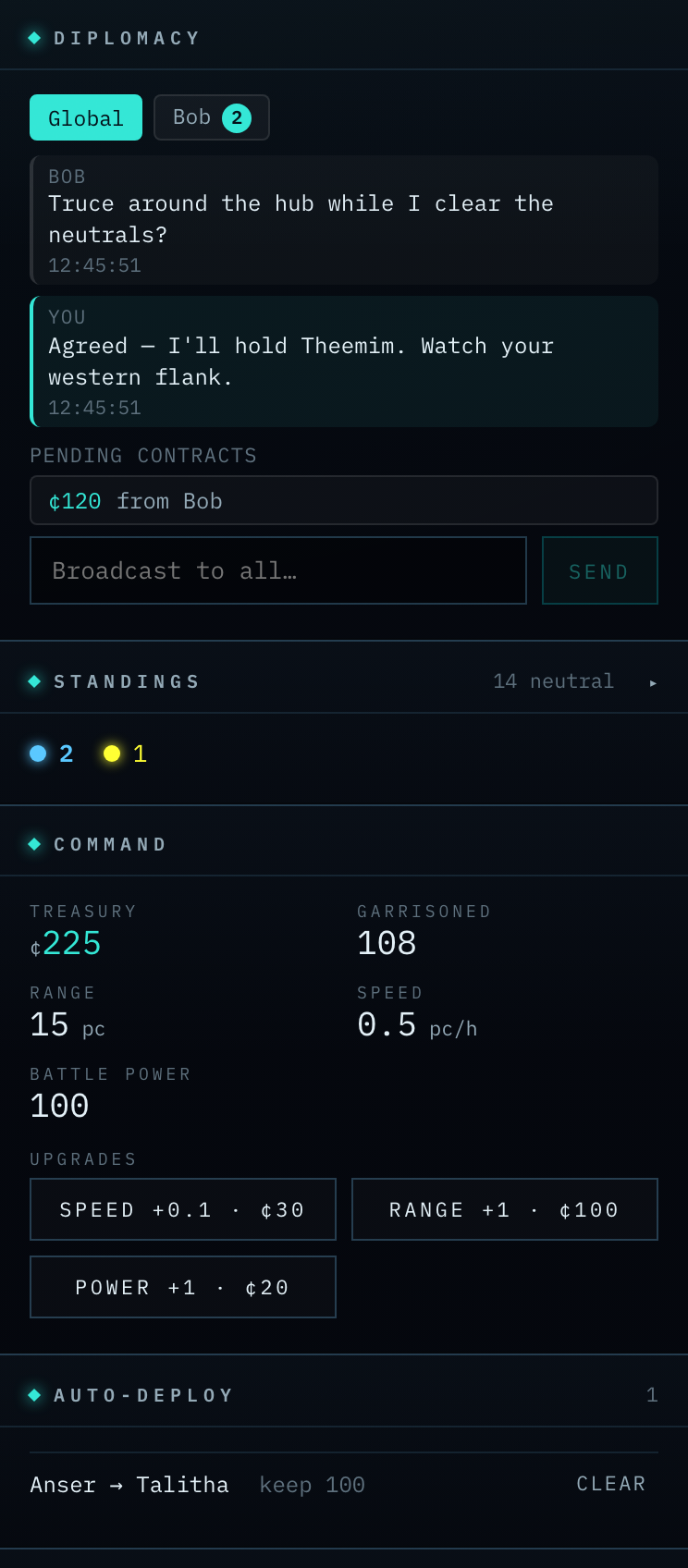
Screenshot: the rail showing the global panels — Standings, Command, Fleets in transit, and Comms.
The Contact panel and issuing commands
The Contact panel is the star drill-down: click a star and the rail switches to show only that star (a ← Back control returns you to the global panels). It is where most of the game is played. It shows:
- the star's name, owner (your colour / a rival's colour / neutral / destroyed), and coordinates;
- if you have intel, a grid of Wealth / Ships / Factories / Shields; otherwise "No intel — outside your sensor coverage.";
- a note if the star has a standing order.
When the selected star is yours, two action sections appear:
Issue command
Four buttons:
- Send fleet — the primary action.
- Spy probe · cost c
- Nova bomb · cost c
- Auto-deploy
Clicking any of these enters targeting mode: the rail swaps to the command composer, the range ring is drawn, and a hint banner tells you to pick a target. The composer header offers Cancel order, the order's title, and the route line. Then:
- Pick a destination by clicking a star. The composer fills in the route, the distance in parsecs, any target intel, and the travel time to that star alongside a reminder of your speed. When the trip needs more than one hop, it shows the routed star chain (A → B → C) followed by a leg-by-leg breakdown — one row per leg, reading origin → destination with that leg's distance, speed, and time, and a · gate mark on any leg that rides a jump gate (its boosted speed counted in). An unreachable target is called out instead of a time.
- For Send fleet, set the ship count with the number field (clear it and type any amount), the slider, or the ¼ / Half / Max presets, and confirm with Launch N ships (Enter also launches; Launch stays disabled until the number is in range).
- For Spy probe / Nova bomb, just confirm (no ship count).
- For Auto-deploy, set the garrison to keep and confirm with Set auto-deploy.
Press Esc at any time to cancel.
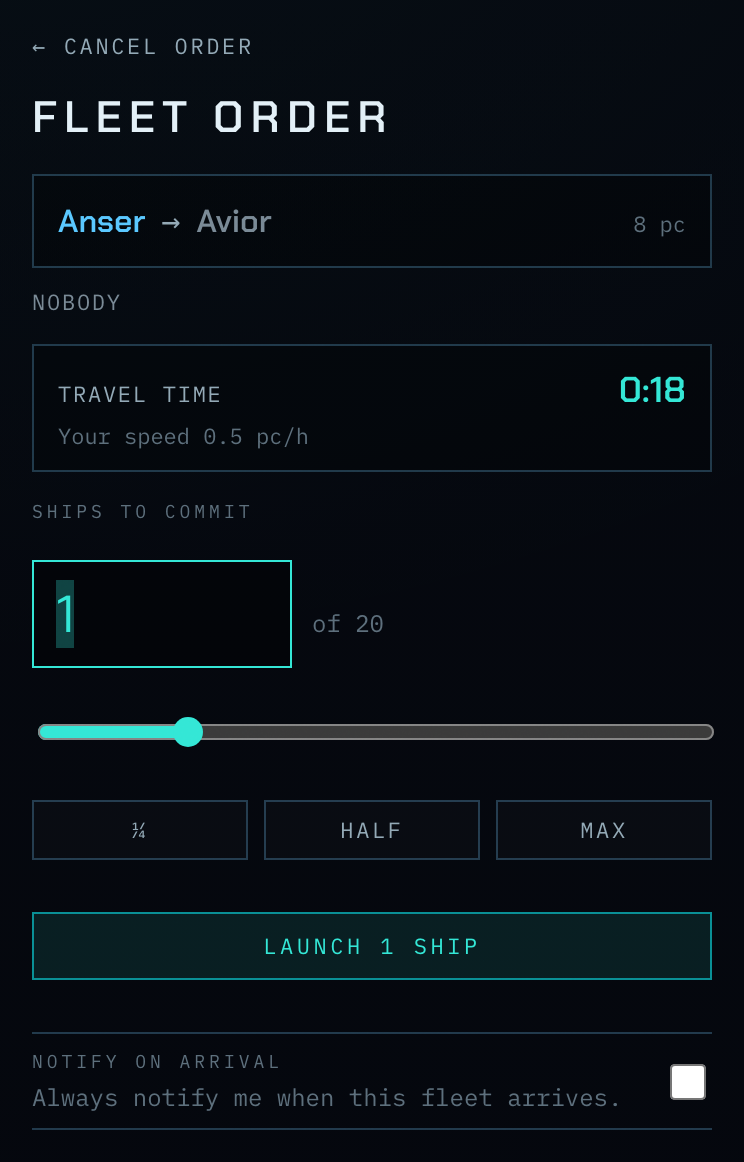
Screenshot: the composer mid-order, showing the route, distance, the travel-time estimate and your speed, the ship slider and presets, and the Launch button.
Build
Per-star purchases on the selected star:
- + Factory · cost c — one factory.
- + 5 · cost c — five factories.
- Probe shield · cost c — if not already installed.
- Nova shield · cost c — if not already installed.
All command, build, and upgrade buttons grey out briefly while an action is being processed.
Diplomacy — talking to other commanders
The Diplomacy panel lives in the rail (among your global panels) and is where you talk to the other commanders. Across the top is a channel selector — a row of chips:
- Global (always first) — a broadcast channel every commander in the theatre reads.
- One chip per other commander — a private 1:1 DM with just the two of you. There are no group channels.
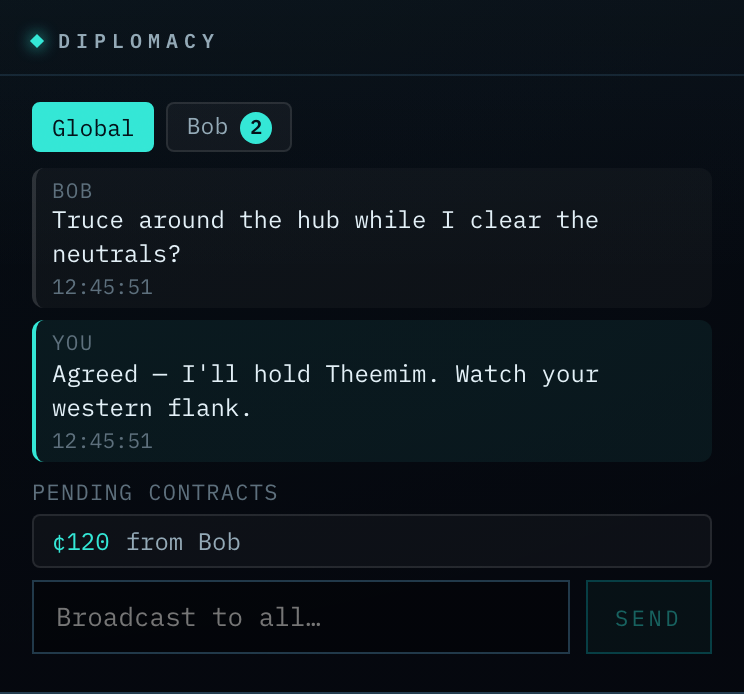
Screenshot: the Diplomacy panel — the Global channel selected (with a private-thread chip beside it), a chat thread, and the composer below.
Each chip carries its own unread badge with a count of messages you have not yet read (capped at 99+); the same unread total feeds the unread-mail chip on the status bar. Click a chip to open that thread; the chip's badge clears as you read.
To send a message, type in the composer at the bottom and send. The placeholder reads "Broadcast to all…" on Global and "Message {name}…" in a DM, and a single message can run up to 2,000 characters. When a message arrives, Nova raises an in-app toast — click it to jump straight to that thread — and sends a push when you are away from the app.
Money-transfer contracts
Inside a 1:1 DM you can strike a contract — a private money offer to that commander. Click Offer a contract…, enter an Amount (¢), and optionally tick Only if they send a fleet to attach a condition (a From star…, a To star…, and a Ships count); then Send offer. With no condition it is a plain payment.
The offer appears as a contract card in your shared thread, showing the amount (e.g. ¢120), the condition ("Send 30 ships from … → …", or "Unconditional payment"), and buttons: the recipient sees Accept / Decline, while you, the offerer, see Withdraw. Your Global channel also carries a Pending contracts roll-up listing every offer you have out or have received, each a click away from its thread.
Accepting settles everything at once. The money moves immediately from offerer to recipient, and if there was a fleet condition that fleet launches on the recipient's behalf the moment they accept — a contracted fleet cannot be recalled. There is no escrow: nobody's credits are set aside when the offer is made, so affordability is only checked at the moment of acceptance — if the offerer can no longer pay, or the recipient can't make that dispatch, nothing happens and the offer stays pending. An offer no one acts on expires after 24 hours.
Contracts are private to the two of you — no other commander sees them, and only your counterparty is notified. The handshake works while the game is paused, and an unconditional payment can even be accepted paused; but accepting a fleet contract needs the clock running (it launches a real fleet), so its Accept button is disabled while the game is paused.
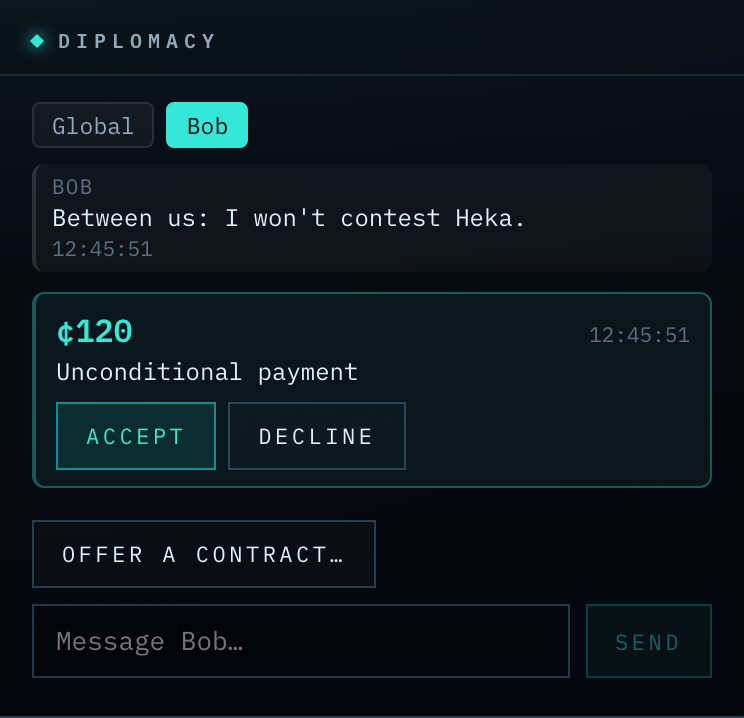
Screenshot: a 1:1 Diplomacy thread with a pending contract card — the amount, its condition, and the Accept / Decline buttons.
Pause governance happens here too. While a pause or resume is being proposed, a pause-governance card sits at the top of Global with the viewer's Second or Withdraw button, and every step — proposals, seconds, withdrawals, expiries, and auto-resumes — is recorded as an italic system log line in Global. (Propose a pause or resume from the status-bar chip; see Pausing a game in Core Concepts.)
Diplomacy keeps working while the game is paused — you can read and send messages, and second or withdraw a pause proposal, even with the clock frozen.
The Fleet in transit panel
Click a travelling fleet's marker on the map and the rail switches to a focused Fleet in transit view that replaces the rail panels until you leave it — a ← Back control at the top returns you to the normal rail. The view shows the fleet's kind (ship fleet / spy probe / nova bomb), From and Heading stars, ETA, and Progress, plus a "Routing onward to …" note when it is mid-route. Two controls live here:
- Notify on arrival — a checkbox that turns the arrival push on or off for this fleet, even after it has launched.
- Recall unit — appears only within 30 seconds of launch and while the origin star has seen no action; clicking it calls the fleet back and refunds its ships (or the probe/bomb cost). See Commanding Fleets for the full rules.
Loading, errors, and the end of the game
- Connecting: before the first data arrives you see a spinner reading "establishing uplink…" (or a "link error" message if something went wrong).
- Live updates: the screen refreshes itself automatically as the game advances — fleets move, battles resolve, standings change — with no need to reload.
- Action errors: a rejected order shows a red message at the top of the rail explaining why.
- Game over: when the game ends, a full-screen overlay declares VICTORY (green, if you
won) or DEFEAT (red), with the line "
commands the most stars." The game ends either when the mission deadline is reached or early, the moment one commander is the sole survivor. Every commander gets a game-over push when it does.