Commanding Fleets
Moving ships is the heart of Nova. This chapter covers how to send a fleet, how far it can go, how routing works, and what happens when it arrives.
Sending a fleet
The flow is the same on web and mobile:
- Select one of your stars. Only your own stars can launch fleets. Its details open in the Star panel, and command buttons appear.
- Choose Send fleet. Nova enters targeting mode — the range ring is drawn around your star and a hint tells you to pick a destination.
- Pick a destination star by clicking or tapping it on the map.
- Choose how many ships to send. Use the slider/stepper, type a number, or use the ¼, Half, and Max presets. You can send any number from 1 up to the star's available garrison.
- Launch. Confirm with the Launch N ships button. The fleet departs.
Before you launch, the composer shows you the trip up front: the route and its distance, the travel time (the real-world wait until arrival), and a reminder of your speed in parsecs per hour. If the destination is beyond a single hop, the composer shows the routed path your fleet will actually fly through your own stars; if a jump gate speeds part of the trip, it says so and the travel time already accounts for it. If a star is simply out of reach, the composer tells you so instead of a time, so you never launch a fleet that can't get there.
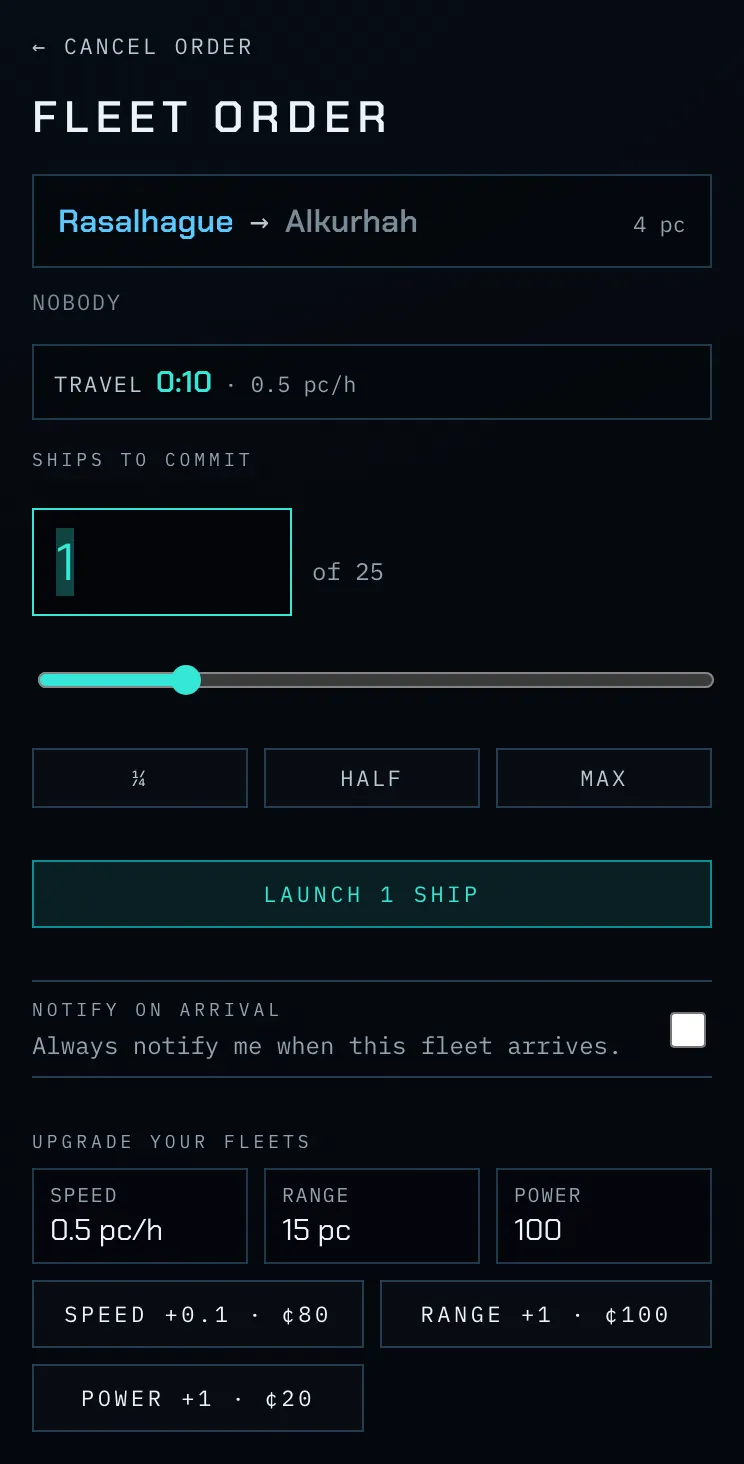
Screenshot: the fleet composer showing the route "Home -> Target", the distance, the travel-time estimate and your speed, the ships-to-commit slider, and the ¼ / Half / Max presets with a Launch button.
Tip — available vs. total ships: The maximum you can send is the star's available ships — its garrison minus any ships already committed to fleets that haven't left yet. You cannot promise the same ship to two fleets.
To cancel while composing an order, press the × in the panel's corner, press Esc (web), or tap empty space on the map.
How far a fleet can reach
A single fleet jump can only reach a destination within your range (the dashed ring around the selected star). If you target a star inside the ring, the fleet flies there directly.
To reach a star beyond your range, see Routing, below — Nova will route the fleet through your own territory automatically, provided a path exists.
If no path exists, the order composer tells you exactly what it would take, e.g. "Out of range — needs Range 14.3 (you have 10)". The figure is the smallest range that makes the star reachable, counting a hop through your own stars and any gate legs (which ignore range). When you can afford it, a Buy Range +N button sits right there — one tap buys exactly the missing range (rounded up to a tenth of a parsec) and the order is yours to launch; otherwise the price is shown so you know what to save for.
You also cannot launch a fleet that would arrive after the mission ends — there has to be enough time left in the game for it to land.
Routing — reaching distant stars
When you target a far-off star, Nova looks for a path that strings together jumps through the stars you own, where every individual leg is within your range. If it finds one, the fleet:
- Flies to the first star on the route (the next "hop").
- Lands there, then automatically relaunches toward the destination along the next leg.
- Repeats until it reaches the target.
The map's route-preview line shows this path with a pip at each hop, so you can see exactly how the fleet will travel before you commit. Because routing relies on stars you own, expanding your territory also expands your reach — a chain of owned stars lets fleets travel right across the galaxy.
Routing also uses any jump gate you can leave from when it offers a faster path: the gate leg ignores the per-jump range limit and is heavily discounted in travel time, so the preview will route a fleet through a gate whenever that beats flying. See the Jump Gates chapter.
Spy probes and nova bombs do not route through your territory; they always fly directly to their target and so must be launched from within range of it — unless a jump gate links the launch star straight to the target, in which case they ride the gate (range and all). See the Jump Gates chapter.
Travel time
A fleet's travel time depends on:
- Distance — farther takes longer.
- Your speed — faster ships arrive sooner. Upgrading speed shortens every trip.
Spy probes and nova bombs travel at double the speed of ships, so they reach their targets in half the time a fleet would.
You don't have to guess: the fleet composer shows the exact travel time before you launch, along with your current speed, so you can compare destinations and decide whether a star is worth the wait. A jump gate on the route is folded into that estimate automatically.
You can follow any fleet's progress under the Fleets tab, which shows a progress bar for each, and on the map, where the marker moves in real time.
What happens on arrival
When a fleet reaches its destination, one of three things happens:
- The star is yours (or a friendly waypoint): the ships land and join the garrison. (On a routed trip, they then relaunch toward the final destination — unless that trip has become pointless while they flew: if the final destination has been destroyed, or the chain of your stars leading to it is gone (a waypoint captured or bombed), the fleet halts at the waypoint instead of flying on, and comms tells you why — "30 ships halted at Vega — Altair has been destroyed". A fleet never knowingly flies its next leg into a dead star.)
- The star is neutral or enemy: a battle is fought between your incoming fleet and the star's defenders. Win, and you capture the star with your surviving ships as its new garrison. Lose, and your fleet is destroyed. See the Combat chapter for the details.
- The star is dead (destroyed): your fleet is lost to a "fiery death." Never route a fleet through, or to, a dead star.
Reading the Fleets tab
The Fleets tab lists every one of your units currently travelling (the In transit panel):
- Each row shows origin -> destination and a progress bar.
- A ship fleet shows its ship count; a probe shows the word probe (green); a nova bomb shows nova bomb (red).
- The list is ordered by arrival time, soonest first, so the fleet about to land is always at the top.
When the panel says "No fleets underway," everything you command is sitting in a garrison.
Managing a fleet after launch
Selecting a fleet — click its marker on the map (web) or tap its row under the Fleets tab (mobile) — opens the Fleet view. This view takes over the rail, replacing the star panels with the fleet's origin, heading, ETA, and progress, plus a ‹ Back control to return to the star panels. If the fleet is on a routed (multi-hop) trip, the view adds a Planned route — the remaining legs, each as origin → destination with its distance, speed, and time — and notes when the fleet is currently riding a jump gate. It carries these controls:
Stopping a routed fleet early
A fleet on a routed (multi-hop) trip can be told to stop at its next star at any time — while it is still queued, or already in flight on any leg. The Stop at <star> button sits under the Routing onward to … line; use it and the rest of the route is cancelled: the fleet lands at the star it is currently heading to and stays there as garrison, exactly as if you had sent it there in the first place. Nothing is refunded and nothing turns around — only the future legs are dropped, so this works long after the 30-second recall window has closed. It is available while the theatre is paused, and it cannot be used on a fleet that is fulfilling a contract (that route is part of the bargain).
Recalling a fleet
For a short window — 30 seconds after launch — a launched order can be called back. A Recall button appears in the fleet panel while it is still cancellable; use it and Nova returns the ships to the origin star (or refunds the cost of a spy probe or nova bomb).
Recall is meant as an undo for a misclick, not a tactic, so it is fenced in:
- It is offered only within the 30-second window; after that the order is final and the button is gone.
- It is refused if anything has happened at the origin star since you launched — an arriving fleet, a battle, another launch, a probe or bomb. (Routine production at the origin does not block it.) The panel explains why if a recall is rejected.
- The window is measured in game time, so if the theatre is paused the clock freezes and the fleet stays recallable until play resumes — recall works even while paused.
Notify on arrival
The same panel carries a Notify on arrival switch (also offered in the composer before you launch). Turn it on and Nova pushes you the result the moment this fleet lands — the battle outcome, scouted intel, or a star's destruction — even after the unit is already on its way. It is off by default and set per fleet, so you flag only the launches worth waiting on. See Special Operations and the client chapters for more on notifications.
Tip: A fleet shown at or near 100% on the map has effectively arrived; watch the Comms feed for the battle or capture report that follows.