Getting Started
This chapter takes you from a blank screen to your first dispatched fleet. The steps are the same in spirit on web and mobile; where they differ, both are described.
Step 1 — Open Nova
- On the web: open the Nova address in your browser. You arrive at the enrollment screen, branded NOVA / Galactic Command.
- On mobile: open the Nova app. If you have played before, it remembers your last commander and drops you straight back into that game. Otherwise you land on the same enrollment screen.
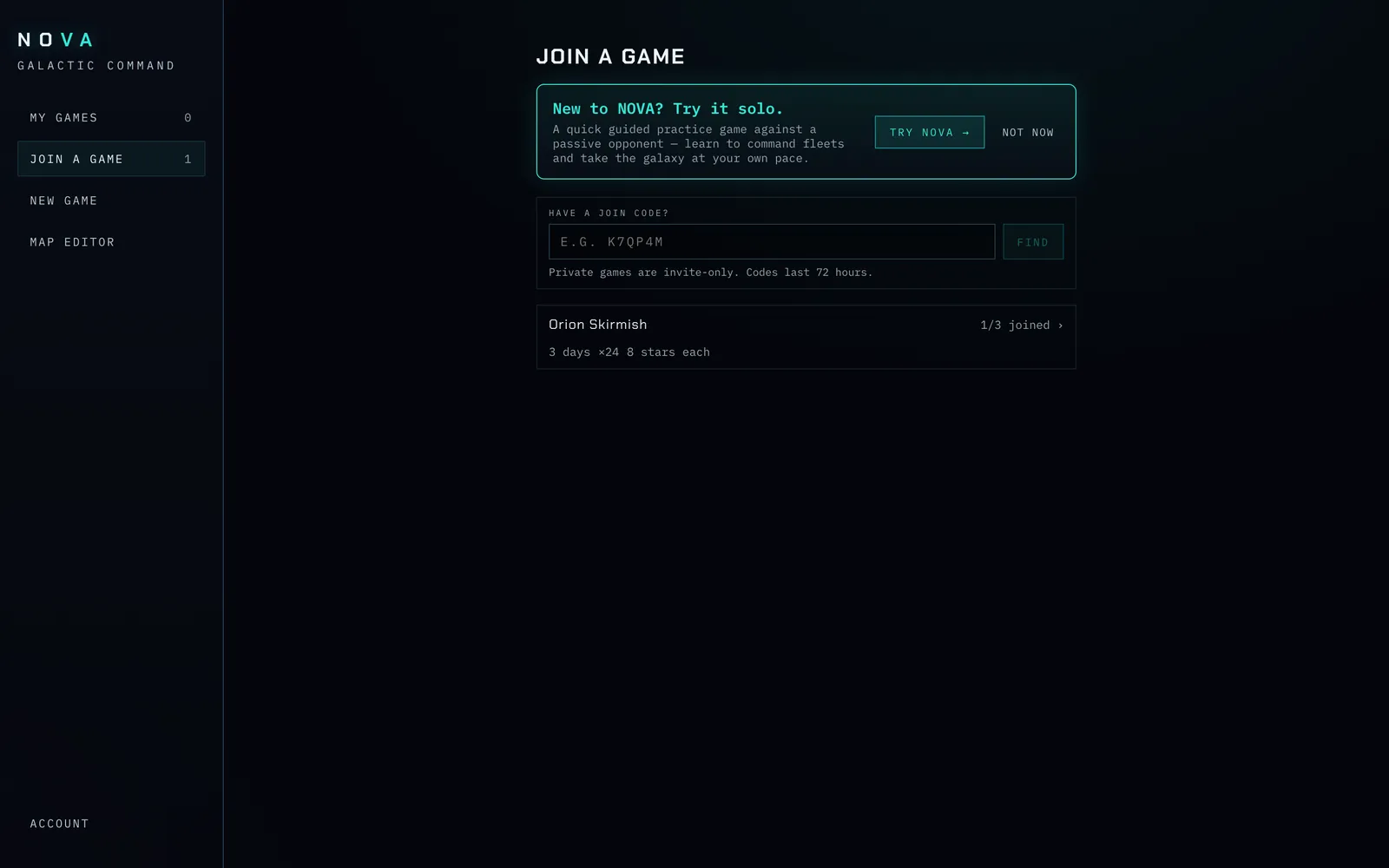
Screenshot: the enrollment screen. On the web, a left-hand menu lists "My games", "Join a game", "New game", and "Map editor". On mobile, a bottom tab bar offers the same choices — My Games, Join, New Game, and Map Editor — and new players land here.
Signing in
The public, hosted Nova asks you to sign in first, so each commander belongs to a real account. You meet a screen headed NOVA / Galactic Command with the prompt "Authenticate to deploy." Sign in once and Nova remembers you:
- On the web: choose Continue with Apple or the Google button. Each opens that provider's secure pop-up; approve it and you are in.
- On mobile: tap the Apple sign-in button and approve the native iOS sheet. (Phones are Apple-only for now.)
You use one account, linked by email — sign in with Apple and with Google under the same email and you land in the same account. There is no password to manage. You can sign out any time from the Account view (web: left menu → Account; mobile: the Account tab), which shows the email you are signed in as. If your session lapses, Nova returns you to the sign-in screen automatically and you sign in again.
The Account view also holds a Display setting: a Color assist switch. Turn it on and every commander colour — on the star map, the standings, the join lists — is swapped for a set chosen to be easier to distinguish with red-green colour vision deficiency. The setting applies only to the device you set it on, and you can flip it at any time, even mid-game.
The Account view is also where you can permanently delete your account. You confirm by typing DELETE (the deletion can't be undone), and Nova removes your login and the sign-in details tied to it. Any commander you had in a game still running is left on the map — your stars and fleets stay put so the other players aren't disrupted — but the slot is marked as a commander who left. After deleting you are signed out; signing in again starts a fresh account.
Development builds replace the provider buttons with a simple dev sign-in: type any email and press Enter dev mode to become that email's commander. It exists only for local testing and never appears on the live service. A Nova configured with authentication switched off skips this screen entirely and drops you straight at enrollment.
Step 2 — Join a game, or start a new one
A theatre is a single game. You can join one that is forming, or create your own.
New to Nova? Try it solo first. On My Games and Join a game, newcomers see a Try NOVA offer (and there is always a small Try NOVA → link on My Games). It opens a short explainer and then drops you into a private practice game against a single, weak opponent — no real players, no waiting, a generous starting treasury, and a fast clock. The opponent is run by the autopilot (see that chapter) at a gentle pace, so you meet fleets, probes, and the autopilot notices without facing a real rival. It is the whole game of Nova in miniature: send fleets, capture stars, build factories, and defeat the opponent to win. A finished practice game drops out of your list on its own — it is not kept under Ended games. Come back here to start a real theatre whenever you are ready.
Joining a game in the lobby
Under Join a game you see the games that are forming — open theatres still waiting for their commanders, with a count of how many there are. Each game is one card, laid out like a menu item so you can size it up, join it, or share it without opening anything:
- Players comes first: a box naming who has joined and how many seats are still open ("2 of 6").
- Join and Share sit right under it. Share opens your phone's share sheet (Messages, Mail, Copy…) with the invite link. The raw join code is in the card's footer as a backup — tap it to copy it.
- Length ("14 days"), Pace (Relaxed, Standard, or Accelerated, with how often new ships arrive — "new ships every 2 hours"), and Galaxy (how many stars each commander gets, and the layout as two checkboxes, Symmetric and Random — both ticked is the default mirrored-with-scatter map). A game built from a saved map says Custom — tap preview to see its galaxy and home worlds before you join.
- Settings lists every way the game departs from the standard rules — the starting fleet or credits, an item's price, autopilot off — or just Standard.
Tap Join, type the name you want in the "Your commander name" field, and press Join. The form opens right on the card. That takes the next open slot and names you as its commander — there are no pre-named commanders to choose from. On a generated galaxy every home world is an interchangeable random star, so Nova picks one for you and renames it after you — your home star carries your commander name on the map. On a game built from a saved map the home worlds have names the designer chose, so there Join opens a home-world picker: the game's facts up top, the galaxy drawn large with each claimable home world marked in its commander's colour, and a Join as … button per world — so you see the whole territory before you commit:
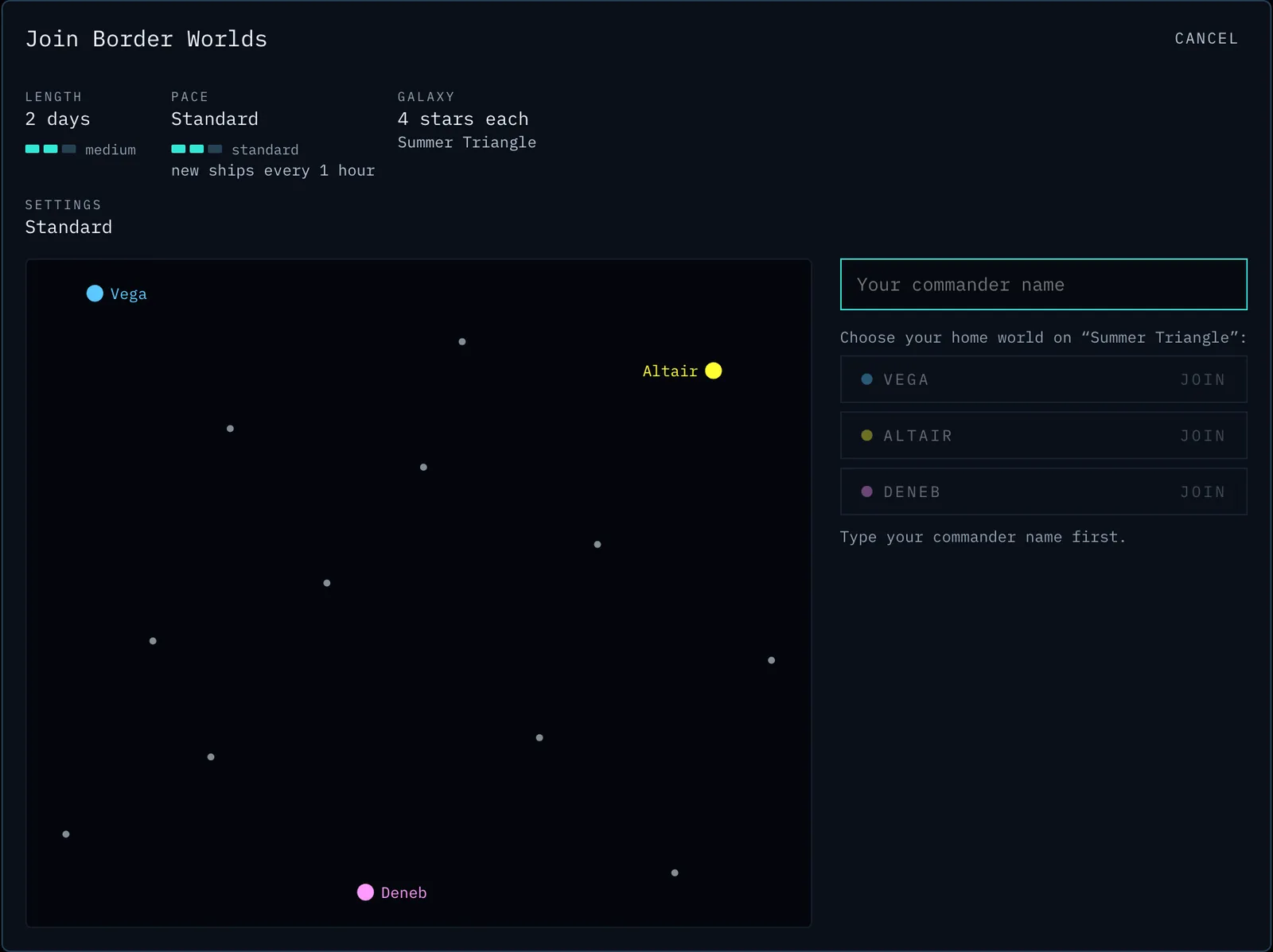
Screenshot: joining a saved-map game — the game's facts, the galaxy with three claimable home worlds marked in their commanders' colours, and a Join-as button for each.
The game then moves under My games, where you watch it fill: its card reads "Waiting for players…" and updates live as others join, then "All players joined — starting…" the moment the last slot is taken. Once it's live, that card carries an Enter game button to jump straight in.
You join one slot per game with your account: once you've claimed a commander, trying to claim a second slot in that same game is refused ("You have already claimed a commander in this game"), so you cannot hot-seat several commanders from one login. For testing, development builds let each browser tab sign in as a different dev email — and so join as a different commander — which is how the screenshots in this manual are made. On a no-login Nova nothing locks.
Changed your mind about a game you created? While it is still forming, its card — under My games and on its join screen — carries a delete control for the creator (you're asked to confirm). Nothing is lost but the lobby entry — the game never started — and any commanders who had joined simply see it disappear. Once a game has started it cannot be deleted this way.
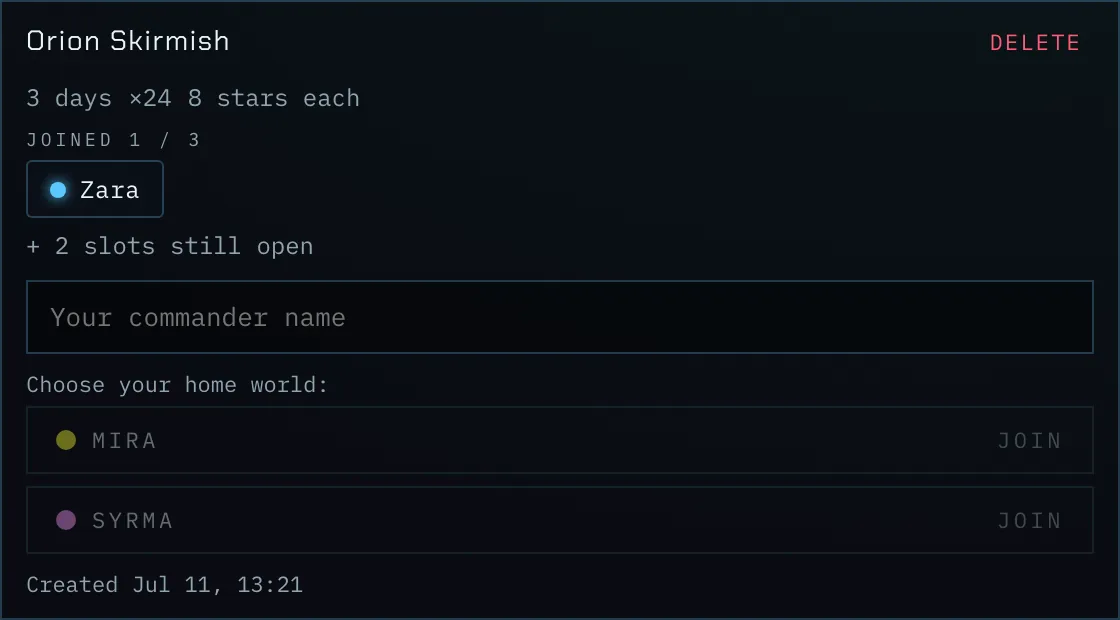
Screenshot: a Join-a-game card showing the game name, its settings chips and roster, and the "Your commander name" field with a Join button.
Tip — one slot per account. With sign-in on, your account claims a single slot per game in the lobby, and once a game is active under My games you are locked to the commander you claimed — you play that theatre as that commander, and yours alone.
Some theatres are private and never appear in this list. To join one you need its join code: enter the code a friend gave you in the join-code box on the Join a game screen, and Nova shows you that game's lobby so you can name yourself in an open slot. (The box accepts any game's code, public or private.) See Join codes and sharing a game below.
Creating a new game
Choose New game to open the Create a new game wizard — three quick steps, with a progress indicator ("1 of 3") and Back / Next buttons to move between them.
Step 1 — Game. The two choices that shape everything else:
Who can join — Public (the default) or Private. A public game appears in the Join a game list for anyone; a private game is hidden from the public list and reachable only by a code or link you share. (See Join codes and sharing a game below.)
Game length — pick a preset: Quick (~1 hour), Medium (~3 days), or Long (~2 weeks). Nova tells you how many production cycles the game will run and how often they land (e.g. "about 35 production cycles — one about every 1.7 min"). Every preset runs the same standard amount of game; the length just spreads those cycles over more or less real time. Custom pace reveals two fields you can edit:
- Game length (real hours) — how long the theatre runs in real-world hours; decimals are
allowed (e.g.
1.5for a ninety-minute game). When this much real time has passed, the game ends. - Speed (× standard) — a pace factor where 1.0 is the standard amount of game for that length. Lower it (e.g. 0.5) for a more relaxed game with fewer production cycles, or raise it (2.0) to pack in twice as much. The length — the real hours you'll spend — doesn't change; the factor changes how much game happens inside it.
Only one public game of each length can be forming at a time, so if a public game of your chosen length is already waiting for commanders, this step warns you right away — join that one, make yours private, or pick a different length.
- Game length (real hours) — how long the theatre runs in real-world hours; decimals are
allowed (e.g.
Step 2 — Map. Where the galaxy comes from — you pick one of two routes (see Choosing a galaxy below):
- Generate a fresh map (the default) or Load a saved map you designed in the map editor. Loading shows the list of saved maps; pick one right here. A saved map is built for an exact number of commanders, so it also sets the player count for you.
- When generating: pick a Galaxy size — Standard, Large, or Extra Large — which sets how many stars each commander gets, and a layout (Symmetric + scatter — the default — / Symmetric / Random). Custom galaxy (collapsed) lets you type an exact stars per commander count instead of using a size preset.
Step 3 — Details. Name it, size the roster, and (optionally) fine-tune:
- Name your game (required) — the field starts pre-filled with a suggested name (like Cygnus Gambit or Operation Ironveil); keep it, type your own, or press the reroll button (a die icon) to roll another. Friends see this name when they join, so every game is named.
- Players (commanders) — set the count with the – / + stepper (two to eight). Players name themselves when they claim a slot, so you do not name any commanders here. If you loaded a saved map, this step instead reminds you the map is for exactly that many commanders.
- Advanced (ships, cash, costs, autopilot) (optional) — a collapsed section for fine-tuning most games leave alone: Starting ships and Starting cash (each 250 by default, the same for every commander so the opening stays fair); the purchase costs of everything commanders can buy — factories, the speed/range/battle-power upgrades, spy probes, nova bombs, and the two shields (leave them at Nova's standard prices, listed in Economy and Building, or tune them to shape the game); and Absent commanders — Autopilot (the default) or Sit still. With Autopilot, a commander who stops giving orders for three production cycles has a few basic moves made for them until they return, so the galaxy never has a dead spot; with Sit still, an absent empire does nothing (see the Autopilot chapter). These settings apply to that theatre for its whole life. Every setting has sensible bounds (listed under Game settings limits in the Glossary and Quick Reference); the wizard greys out Create game and says which value is out of range.
The last step shows a one-line summary of your choices. Press Create game and Nova builds the galaxy. A public game takes you straight to its join screen to claim your own seat; a game first shows a Share screen (below) so you can invite your commanders. As players join and claim its slots the game fills up, and it starts automatically the moment every slot is taken — there is no manual start step.
Join codes and sharing a game
Every game you create gets a short join code — six characters drawn from clear, unambiguous
letters and numbers (no easily-confused 0/O or 1/I/L), so it reads cleanly aloud or off
a screen, like K7PQ9R. The code is shown to you, the creator, on the game's card, and to anyone
who has already joined. For a public game the code is simply the easiest way to invite a
friend — the game is also listed openly. A private theatre is invite-only: it does not show
up in the public Join a game list, so nobody stumbles into it, and the code is the only
way in.
The moment a game is created, Nova shows a Share screen: a Share button — which opens
your device's share sheet, so you can send the link by text, or simply copies the link where
there is no share sheet — plus the join code as a tap-to-copy backup and the shareable
link itself (novagame.app/j/<code>). The same code and link appear again on the game's
join screen for anyone looking at the lobby, so any commander can pass the invite along,
not just the host.
Share it however you like — a text with the link, the code read out over a voice call.
The easiest way in is the link: tapping novagame.app/j/<code> on a phone with the NOVA app
installed opens the app straight to that game's join screen, with the code already filled in —
nothing to type. If the app isn't installed (or the link is opened on a computer), it opens a web
page instead that shows the code with a tap-to-copy button and buttons to open the NOVA app
or play in your browser. And the invite even survives a fresh install: heading to the App
Store from that page quietly copies the invite link, and the first time NOVA opens it notices —
once, with your permission — and takes you straight to that game's lobby after you sign in, so
you can see exactly what you're joining. Either way they land on the join screen to claim a
slot. A commander
can also join by typing the code into the join-code box on the Join a
game screen (web and mobile). Without the code, a private theatre simply isn't reachable.
Heads up — a code lives as long as the lobby. A join code works for as long as the game is still forming. Once the game starts (or is deleted), the code stops finding it and the "No game found for that code" message appears — so a link you shared never goes stale while your theatre is still gathering commanders.
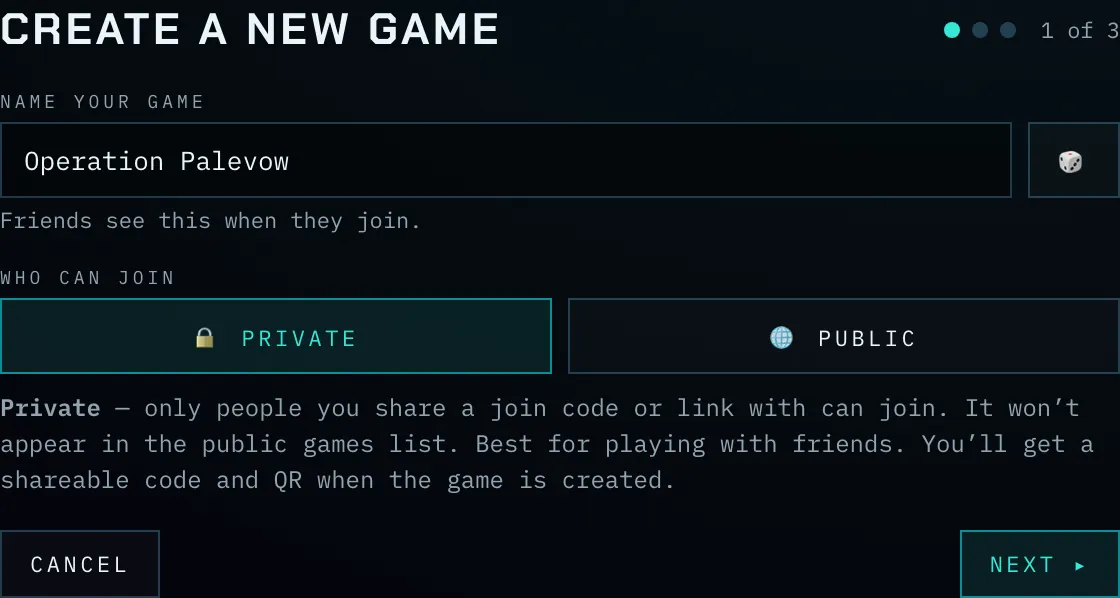
Screenshot: the Create-a-new-game wizard — the Identity step with the pre-filled game name and its reroll button, and the Private / Public choice; followed by the Map step (Generate / Load-a-saved- map, the commander stepper and Galaxy-size presets) and the Pace step (Quick / Standard / Long presets with the production-cycle count, and the Custom-pace length + speed fields).
Note: Game length is always real-world time. A 24-hour theatre ends 24 real hours after it starts no matter what compression you pick — turning compression up just fits more production cycles and battles into those hours. See Time compression and game length in the Core Concepts chapter.
Choosing a galaxy
When you create a theatre the Map section offers two routes, and you use exactly one of them: Generate a map or Load a saved map.
Generate a map builds a fresh galaxy and lets you set the number of commanders. Pick one of three styles:
- Symmetric — Identical rotated regions with a contested hub. Every commander gets a starting region that is an exact rotated copy of every other, with a single hard-to-hold star at the dead centre of the map. This is the fairest possible layout: no one has a better opening than anyone else.
- Sym + scatter — the symmetric layout above, plus a sprinkling of extra neutral stars spread roughly evenly across the map to break up the pattern and add surprises. Still very fair, a little less predictable.
- Random — Procedurally scattered and balanced. Stars are scattered freely and then balanced so each commander has a comparable share nearby. More varied and less tidy than the symmetric maps, and only roughly fair.
You choose the layout under Advanced when you generate a galaxy; a line beneath the choice explains what each one does.
Load a saved map is the other route, available once you've designed and saved your own galaxy in the map editor. Switch the Map section to Load a saved map and pick one from the list (on both web and mobile); the game starts on that custom layout. Because a saved map already places every home world, it fixes the number of commanders — the count follows the map and the generate-only options (layout, stars per commander) step aside. See the Map Editor chapter.
Step 3 — Get your bearings
Once you are in, you are looking at the galaxy. Find your home star — it is in your colour and is your strongest world, with a large garrison of ships. Take a moment to read the next chapter, Reading the Star Map, so the colours, numbers, and rings make sense.
Beside the map (web) or in the pull-up sheet (mobile) sit four tabs — your control room:
- Command — your stats (treasury, wealth, ships, range, speed, battle power), the autopilot switch, the standings, and your auto-deploy orders.
- Diplomacy — messages: the Global channel and private threads (a badge counts unread).
- Comms — the news wire: battles, arrivals, production, everything that happened.
- Fleets — everything of yours in transit, soonest arrival first.
Selecting a star or a fleet opens its own panel in place of the active tab. A ‹ Back control under the tabs returns you to whatever you were looking at before — the news wire, or the previous star — so you can step back through what you opened one tap at a time (hover it on the web to see where it leads); tapping any tab also returns you straight to that tab. Each tab remembers how far you had scrolled, so switching away and back does not lose your place in the wire. A game opens on Comms (on mobile, with the sheet already half way up) so the news wire is the first thing you see — though a game with unread messages opens on Diplomacy so you never miss a conversation.
Step 4 — Issue your first order
The shortest path to playing:
- Select your home star by clicking (web) or tapping (mobile) it. Its details appear in the Star panel.
- Because it is your star, command buttons appear — choose Send fleet.
- Pick a destination: click or tap a nearby neutral (grey) star that lies inside your range ring.
- Choose how many ships to send using the slider or the ¼ / Half / Max buttons.
- Confirm with Launch.
Your fleet leaves home and crawls across the map toward its target. When it arrives, it will either occupy the neutral star (if it is undefended or you bring enough ships) or fight a battle for it. Watch the Comms tab and the Fleets tab to follow what happens.
That is the core loop of Nova: select a star, give it an order, watch it play out, repeat. Everything else in this manual builds on those four moves.
Switching commanders or leaving
To leave a game and return to the enrollment screen — for example to join a different theatre or play a different commander — use the ‹ Lobby control in the status bar at the top; your game keeps running while you are away. On the web, opening a second tab is usually easier than switching back and forth. You can also sign out or switch accounts from the Account view (web left menu → Account; mobile Account tab).